How can I take a thread dump and heap dump automatically when my CPU utilization is above 80%?

Thread dumps are vital artifacts to diagnose CPU spikes, deadlocks, memory problems, unresponsive applications, poor response times, and other system problems. There are great online thread dump analysis tools such as http://fastthread.io/ that can analyze and spot problems. But to those tools you need provide proper thread dumps as input. Thus in this article, I have documented 7 different options to capture thread dumps.

1. jstack

‘jstack’ is an effective command line tool to capture thread dumps. The jstack tool is shipped in JDK_HOME\bin folder. Here is the command that you need to issue to capture thread dump:
jstack -l  <pid> > <file-path>
Where:
pid: is the Process Id of the application, whose thread dump should be captured
file-path: is the file path where thread dump will be written in to.
Example:
jstack -l 37320 > /opt/tmp/threadDump.txt
As per the example thread dump of the process would be generated in /opt/tmp/threadDump.txt file.
Jstack tool is included in JDK since Java 5. If you are running in older version of java, consider using other options

2. Kill -3

In major enterprises for security reasons only JREs are installed in production machines. Since jstack and other tools are only part of JDK, you wouldn’t be able to use jstack. In such circumstances, ‘kill -3’ option can be used.
kill -3 <pid>
Where:
pid: is the Process Id of the application, whose thread dump should be captured
Example:
Kill -3 37320
When ‘kill -3’ option is used thread dump is sent to standard error stream. If you are running your application in tomcat, thread dump will be sent in to <TOMCAT_HOME>/logs/catalina.out file.
Note: To my knowledge this option is supported in most flavors of *nix operating systems (Unix, Linux, HP-UX operating systems). Not sure about other Operating systems.

3. JVisualVM

Java VisualVM is a graphical user interface tool that provides detailed information about the applications while they are running on a specified Java Virtual Machine (JVM). It’s located in JDK_HOME\bin\jvisualvm.exe. It’s part of Sun’s JDK distribution since JDK 6 update 7.s
Launch the jvisualvm. On the left panel, you will notice all the java applications that are running on your machine. You need to select your application from the list (see the red color highlight in the below diagram). This tool also has the capability to capture thread dumps from the java processes that are running in remote host as well.
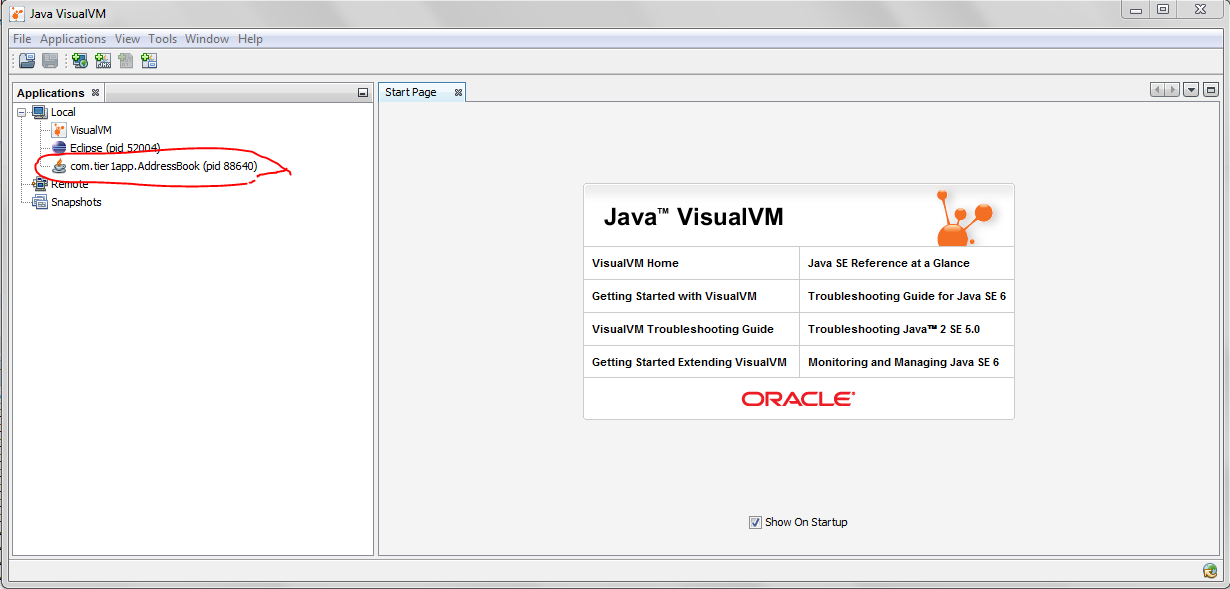
Fig: Java Visual VMFig: Java Visual VM
Now go to the “Threads” tab. Click on the “Thread Dump” button as shown in the below image. Now Thread dumps would be generated.
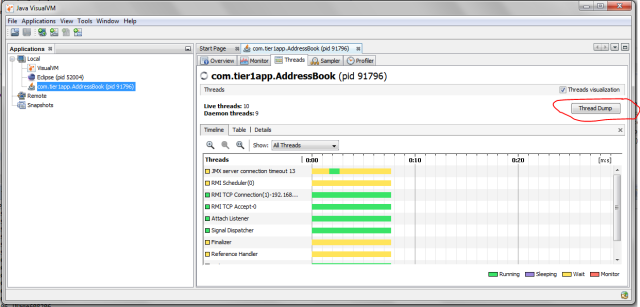
Image title
Fig: Highlighting "Thread Dump" button in the “Threads” tab

4. JMC

Java Mission Control (JMC) is a tool that collects and analyze data from Java applications running locally or deployed in production environments. This tool has been packaged into JDK since Oracle JDK 7 Update 40. This tool also provides an option to take thread dumps from the JVM. JMC tool is present in JDK_HOME\bin\jmc.exe
Once you launch the tool, you will see all the Java processes that are running on your local host. Note: JMC also has the ability to connect with java processes running on a remote host. Now on the left panel click on the “Flight Recorder” option that is listed below the Java process for which you want to take thread dumps. Now you will see the “Start Flight Recording” wizard, as shown in the below figure.
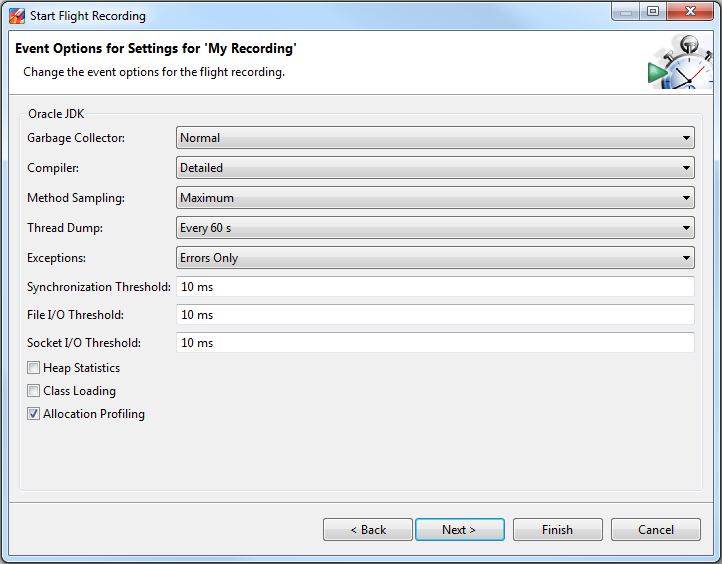
Image titleFig: Flight Recorder wizard showing ‘Thread Dump’ capture option.
Here in the “Thread Dump” field, you can select the interval in which you want to capture thread dump. As per the above example, every 60 seconds thread dump will be captured. After the selection is complete start the Flight recorder. Once recording is complete, you will see the thread dumps in the “Threads” panel, as shown in the figure below.
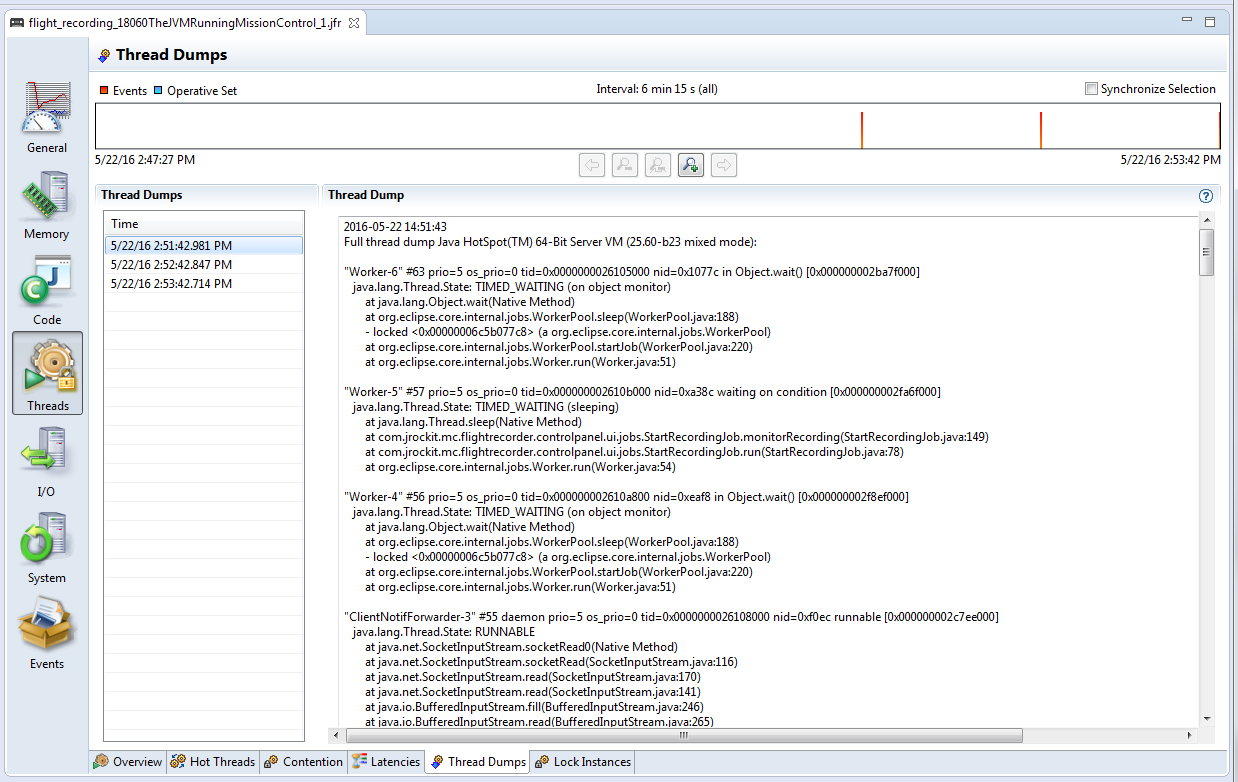
Image title
Fig: Showing captured ‘Thread Dump’ in JMC.

5. Windows (Ctrl + Break)

This option will work only in Windows Operating system.
  • Select command line console window in which you have launched application.
  • Now on the console window issue the “Ctrl + Break” command.
This will generate thread dump. The thread dump will be printed on the console window itself.
Note 1: in several laptops (like my Lenovo T series) “Break” key is removedJ. In such circumstances you have to google to find the equivalent keys for the “Break”. In my case it turned out that “Function key + B” is the equivalent of “Break” key. Thus I had to use “Ctrl + Fn + B” to generate thread dumps.
Note 2: But one disadvantage with this approach is thread dump will be printed on the windows console itself. Without getting the thread dump in a file format, it’s hard to use the thread dump analysis tools such as http://fasthread.io. Thus when you launch the application from the command line, redirect the output a text file i.e. Example if you are launching the application “SampleThreadProgram”, you would issue the command:
java -classpath . SampleThreadProgram
Instead launch the SampleThreadProgram like this
java -classpath . SampleThreadProgram > C:\workspace\threadDump.txt 2>&1
Thus when you issue “Ctrl + Break” thread dump will be sent to C:\workspace\threadDump.txt file.

6. ThreadMXBean

Since JDK 1.5 ThreadMXBean has been introduced. This is the management interface for the thread system in the Java Virtual Machine. Using this interface also you can generate thread dumps. You only have to write few lines of code to generate thread dumps programmatically. Below is a skeleton implementation on ThreadMXBean implementation, which generates Thread dump from the application.
    public void  dumpThreadDump() {
        ThreadMXBean threadMxBean = ManagementFactory.getThreadMXBean();
        for (ThreadInfo ti : threadMxBean.dumpAllThreads(true, true)) {
            System.out.print(ti.toString());
        }
    }

7. APM Tool – App Dynamics

Few Application Performance Monitoring tools provide options to generate thread dumps. If you are monitoring your application through App Dynamics (APM tool), below are the instructions to capture thread dump:
1. Create an action, selecting Diagnostics->Take a thread dump in the Create Action window.
2. Enter a name for the action, the number of samples to take, and the interval between the thread dumps in milliseconds.
3. If you want to require approval before the thread dump action can be started, check the Require approval before this Action checkbox and enter the email address of the individual or group that is authorized to approve the action. See Actions Requiring Approval for more information.
4. Click OK.
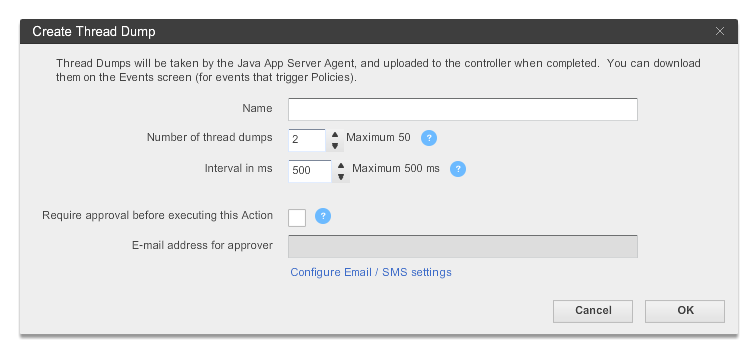
Image title
Fig: App dynamics thread dump capturing wizard

8. JCMD

The jcmd tool was introduced with Oracle’s Java 7. It’s useful in troubleshooting issues with JVM applications. It has various capabilities such as identifying java process Ids, acquiring heap dumps, acquiring thread dumps, acquiring garbage collection statistics, ….
Using the below JCMD command you can generate thread dump:
jcmd <pid> Thread.print > <file-path>
where
pid: is the Process Id of the application, whose thread dump should be captured
file-path: is the file path where thread dump will be written in to.
Example:
jcmd 37320 Thread.print > /opt/tmp/threadDump.txt
As per the example thread dump of the process would be generated in /opt/tmp/threadDump.txt file.

Conclusion

Even though 7 different options are listed to capture thread dumps, IMHO, 1. 'jstack' and  2. 'kill -3' are the best ones. Because they are:
a. Simple (straightforward, easy to implement)
b. Universal (works in most cases regardless of OS, Java Vendor, JVM version, etc.)

Run Time Settings in Load runner

In general load runner runtime settings plays a crucial role in Vugen scripting and scenario running.This is the heart of the Load runner.The run time settings are
General
  • Run Logic 
  • Pacing 
  • Log 
  • Think Time 
  • Additional attributes 
  • Miscellaneous 
Network
  • Speed simulation
Browser
  • Browser emulation
Internet Protocol
  • Proxy
  • preferences
  • download filters
  • Content check
Data Format Extension
  •  Configuration

General 
Run Logic 


Whenever I am using a Vuser type that allows multiple actions in a single script, I will create a separate action for each business process and put appropriate percentage weightings on each action. It is very unusual to have to do anything more complicated than this. I don’t usually use the “sequential” option or create blocks unless I need to have fractional percentage weightings for a business process.
Percentages must be integer values, so to run a business process 0.1% of the time you could create a block that runs 1% of the time, and put an action in the block that runs 10% of the time.
It’s also rare to set a script in a scenario to run for a specified number of iterations (mostly done by time or set to run indefinitely). Generally “number of iterations” is only used when running the script in VuGen. 

Pacing :


“As soon as the previous iteration ends” is used when running in VuGen or when loading/verifying data. Do not use this for load testing
I have never seen the point of the “After the previous iteration ends” option. Why would you want to run an unknown number of transactions per hour against the system?
Don’t use the “At fixed intervals”. If something causes your users to become “in step”, they will tend to stay that way and continue to all hit the server at the same time.
“At random intervals” is definitely the way to go. Obviously for your users to create a certain number of orders per hour the iteration time must average to 3600/num iterations in an hour. Do not make the lower boundary value any bigger than the maximum time it takes to complete the business process, or you will end up creating less transactions per hour than you intend to. 


you can check how to calculate pacing according to the requirement from this blog also.

Log :

Enable logging:once you verify that your script is functional,disable logging to conserve resources.
Logging creates additional overhead on your load generators, and can create huge log files. 


 log absolutely everything when debugging in VuGen.
When running the script as part of a scenario, I leave extended logging on but change the logging to “Send messages only when an error occurs”. This gives a little more information than turning logging off entirely, and won’t create any additional overhead while everything is running smoothly (and if the system is not running smoothly you are going to need to stop the test and investigate anyway). 


Standard log:sends a subset of functions and messages sent during script execution to a log.The subset depends on the Vuser type.

Think Time:


Just like the pacing setting, I think that it is a good idea to put some randomness in your think times.
I use a random percentage of 50-150% of recorded think times.
Use “Ignore think time” if you are debugging in VuGen or if you are loading/verifying data. 


Additional attributes :


This option is ignored by most people. It is used to create a parameter with a given value without having to edit the script (as runtime settings can be overridden in the Controller).
In the screenshot I have created a parameter of ServerName with the address of the test envioronment. If you were testing in more than one test environment at a time, this would make save some time. 


Miscellaneous :


Continue on error is generally only going to be used if you have written code to do something when you encounter an error. Usually the default behaviour of ending the current iteration and then starting the next one is sufficient). I don’t advise anyone to try to write a script that handles errors in the same way as a real user because it will create a lot of additional work for very little benefit, but doing something simple like writing some useful information to the logs and then calling lr_exit(LR_EXIT_ACTION_AND_CONTINUE , LR_FAIL) can be useful.
“Fail open transactions on lr_error_message” should always be ticked. If you are raising an error, you should fail the transaction step that you are performing.
“Generate snapshot on error” is useful. If it is a web script, any error messages should be added to your content check rules.
Run your virtual user as a thread unless you have code that is not threadsafe or there is some other reason to run your virtual users as a process. The overall memory footprint on your load generators will be higher if you run as a process.
I never use the “Define each action as a transaction” option. If I want a transaction in my script I will add it myself with lr_start_transaction.
I never use “Define each step as a transaction” either. If it is a web script, I can use the transaction breakdown graph to get this information, otherwise I will add the transactions myself. 


Network :


Not all vuser types have this option available.
Most of the time my virtual users will use the maximum bandwidth.
If I want to emulate users with bandwidth constraints, I will do this in a separate scenario.
Google calculator is handy to calculate bitrates if your bitrate is not available from the drop-down list e.g./ “256 Kbps in bps”
All of the following settings only apply to web-based scripts. Each vuser type will have its own runtime setting options. It is important to know what they mean and how they will influence your
test results before running any tests that you plan to report on. 


Browser

Browser Emulation: 


Some people get confused by the User-Agent (browser to be emulated) setting. If 90% of your users use Internet Explorer 6.0 and the rest use Firefox 1.5, you don’t have to change the runtime settings for your users to match this. All it changes is the string that is sent in the “User-Agent” field of your HTTP requests. This is completely pointless unless your application has been written to serve different content to different browsers based on the User-Agent field.

Internet Protocol:


Proxy : 


Generally people won’t be using your web applications through your proxy server, so it shouldn't be part of your test either.
If you start getting errors that are due a proxy server rather than the system under test, it will just confuse the people who have to fix the problem.
A proxy server will also make IP-based load balancing ineffective.
If it’s an intranet application and everyone will be using the application through the company’s proxy, then the proxy server should be explicity declared to be in scope for your load test. You should make sure that you have an identical proxy server for your test environment, or that you have permission to be generating load on a piece of Production infrastructure. 


Preferences :


These settings are default values specified by HP, rather than being inherited from the web browser that is installed on your workstation. Generally you will not need to change them, but be aware that they are here. 

Download Filters: 


Download filters are a quick way of preventing your scripts from downloading content from certain URLs or hosts/domains.
I generally use this feature when the web application in the test environment contains third-party images used for tracking website usage (e.g. images from Webtrends or Red Sheriff etc).
I think it is better to specify which hosts your script is allowed connect to, rather than which hosts your script can’t connect to (because it’s easy to miss one accidentally, or the application may change and refer to a new third-party domain).
Use web_add_auto_filter if you want to specify this in your script rather than your runtime settings.
Data Format Extension:


Configuration :


A LoadRunner feature that has made my life a lot easier has been ContentCheck rules, which are available in the script runtime settings. If you are using a web-based vuser type, you can configure your Load Runner script to search through all returned pages for strings that match known error messages. 

Using web_reg_find functions is fine, but when you get an error LoadRunner reports it as “failed to find text” instead of something more descriptive. 

I will always create rules for any error messages I find during scripting and, if I receive an error while running a scenario, I will add the error message from the snapshot in the scenario results directory (the snapshot on error feature is very useful). 

All this is pretty obvious if you have taken the time to explore LoadRunner’s features or you have attended a Mercury training session, but I recommend taking things a step further. 
Ask your developers for a list of all the error messages that the application can throw. This should be easy for them to provide if the application is well designed and stores all the message in some kind of message repository instead of sprinkling them throughout the source code. 
Include error message for functional errors that you are likely to encounter. Creating a rule for “incorrect username or password” may save someone 20 minutes of investigation when they first run the script after the database has been refreshed. 

If you prefer to have error message you are checking for in the script (where you can add comments to them) instead of the runtime settings, you can use the web_global_verification function instead. The only difference between the two is the error message that LoadRunner will include in its log: 

Action.c(737): Error -26368: “Text=A runtime error occurred” found for web_global_verification (“ARuntimeErrorOccurred”) (count=1), Snapshot Info [MSH 0 21] 

…compared to: 

Action.c(737): Error -26372: ContentCheck Rule “ARuntimeErrorOccurred” in Application “Webshop” triggered. Text “A runtime error occurred” matched (count=1), Snapshot Info [MSH 0 21]

Creating Dynamic itemdata in Web_submit_data in load runner

I was working on a project where there was a scenario of searching for a course by its first name or wild cards. The search returns different number of results for different queries. This request is followed by another web_submit_data where the ITEMDATA depends on number of search results.

There are three dynamic variables here – length of the course variable, results returned and the third one being the ITEMDATA of the request itself.

The solution is to build dynamic data on the fly and create a web_custom_request for the web_submit_data

The following function will build the item data -

const char* BuildItemData(int pageSize,const char*ItemDataStart,const char*ItemDataEnd, int lengthOfCourseVar, const char* ArrayName){

char* ItemData;

int iCount,lengthOfOneItem;

lengthOfOneItem = lengthOfCourseVar+strlen(ItemDataStart)+strlen(ItemDataEnd);

ItemData = (char*)malloc((pageSize*(lengthOfOneItem))*sizeof(char));

ItemData[0]=”;

for(iCount=1;iCount<=(pageSize);iCount++)

{

strcat(ItemData,ItemDataStart);

strcat(ItemData,lr_paramarr_idx(ArrayName,iCount));

strcat(ItemData,ItemDataEnd);

}

return ItemData;

}

I changed the web_submit_data to web_custom_request and used the string output as a parameter like this:

lr_save_string( BuildItemData(lr_paramarr_len(“cor_Arr_ClassIDs”),”offId[]=class”,”&”,strlen(lr_paramarr_idx(“cor_Arr_ClassIDs”,1)),”cor_Arr_ClassIDs”),
“ItemDataOnTheFly” );


web_custom_request(“xxxxxxx.aspx”,

“URL=https://{par_Environment_URL}/xxxxxx/xxxxxx.aspx”,

“Method=POST”,

“TargetFrame=”,

“Resource=0″,

“RecContentType=text/html”,

“Referer=https://{par_Environment_URL}/xxx/xxx/xxx/xxxx/xx/xxxxxx?xxxxxx={par_Location}”,

“Snapshot=t12.inf”,

“Mode=HTML”,

“EncType=application/x-www-form-urlencoded; charset=utf-8″,

“Body={ItemDataOnTheFly}&lrnid=xxxxx/{par_UserID}”,

LAST);

What is Security Testing?

Security testing is related to the security of data and the functionality of the application. You should be aware of the following concepts while performing security testing:
1. Confidentiality - The application should only provide the data to the relevant party e.g. one customer's transactional data should not be visible to another customer; the irrelevant personal details of the customer should not be visible to the administrator and so on.

2. Integrity - The data stored and displayed by the application should be correct e.g. after a withdrawal, the customer's account should be debited by the correct amount.

3. Authentication - It should be possible to attribute the data transmitted in the application to either the application or the customer. In other words, no one other than the customer or the bank should be able to create or modify any data.

4. Authorization - The application or a user should only be able to perform the tasks which they are respectively authorized to perform e.g. a customer should not be able to withdraw more than the balance in their account without having an overdraft facility, the application should not be able to levy charges on a customer account without prior customer approval.
5. Availability - The data and functionality should be available to the users throughout the working period e.g. if the bank's operating times are from 8 a.m. to 8 p.m. on all working days, it should be possible for a customer to access their account and make the necessary transactions on their account.

6. Non-repudiation - At a later date, it should not be possible for a party to deny that a particular transaction or data change took place e.g. if a customer withdraws an amount from their account, this should trigger the relevant actions (posting to their transaction records, debiting their account and sending them a notification etc.).

In your question, you mentioned that you wish to avoid any data breach by hackers. You should understand that hackers are not the only people from whom the application functionality and data need to be protected. There are other people that you need to consider as well:

1. Disgruntled customers
2. Unhappy or malicious employees of the bank
3. Unprofessional service providers e.g. an unprofessional hosting company that may have access to the application and the data
4. Unprofessional auditors

Further, since financial data is so important, banking applications in certain countries have to be compliant to the relevant financial standards. Research the relevant standards that your application needs to follow.
Creating a secure application involves a lot of work in designing a secure application and designing a secure data store. Even after deployment, the application should be closely monitored to ensure that the data is being accessed by only the authorized people. If any security breach is reported, it should be analyzed carefully and the loopholes plugged.
Now, let us discuss the actual security testing. You should design security tests based on at least the following:

1. Stated security requirements
2. Security-related standards that the application should follow Assuming that it is a web application,
3. Common vulnerabilities found in web applications
4. Different browser versions on different operating systems (here you should note that implementing security only on the client-side may not suffice)
In your initial tests, you may want to use automated testing tools e.g. web vulnerability scanners, password crackers, web proxy tools etc. Based on your learning, you may want to execute the more complex security tests by hand. Keep yourself updated about the latest hacks and test them on your application before every release.

As you might now appreciate, security testing is a vast area of knowledge and practice. In order to do justice to security testing, it is better to have a dedicated team for security testing

"Object reference not set to an instance of an object" analysis error in load runner

This error comes when the following files in (Analysis Install dir)\bin\dat\ are corrupted:

loader2.mdb, loader.mdf, loader.ldf
Solution:

You need to restore these files; take these files from another machine where you have installed the Analysis. Or Re-install the Analysis on your machine after a clean uninstall

Prerequisites for load Testing in load runner

Important Set up before load testing includes:

A suitable time to load-test the application, for instance when no development work is taking place on the server (load testing may cause the server to crash) and/or no other users are accessing the server (else the testing results would not yield the correct measures)
  1.  The performance metrics, accepted levels, or SLAs and goals
  2.  Objectives of the test
  3.  The Internet protocol(s) the application is(are) using (HTTPS, HTTP, FTP, etc.)
  4. If your application has a state, the method used to manage it (URL rewriting, cookies, etc.)
  5.  The workload at normal time and at peak time
  6. Before load or performance testing application should be stable at least tested at once through the manual method
  7. Before load testing, do not record any page, which has 404 or server errors
  8. During load test don’t do real transaction or any money ready work.
  9.  During load testing try to maintain the real scenario as user experience
  10.  Use meaningful test scenarios (use cases are helpful) to construct test plans with 'real-life' test cases.
  11.  Make sure that the machine running Load testing tool has sufficient network bandwidth, so the network connection has little to no impact on the results.
  12.  Let Load Test run for long time periods, hours or days, or for a large number of iterations. This may yield a smaller standard deviation, giving better average results. In addition, this practice may test system availability rate and may highlight any decay in server performance.
  13.  Ensure that the application is stable and optimized for one user before testing it for concurrent users.
  14.  Incorporate 'thinking time' or delays using Timers in your Load testing scenario Test Plan. 
  15.  Keep a close watch on the four main things: processor, memory, disk, and network.
  16.  Only run Load testing tool against servers that you are assigned to test, else you may be accused of causing DoS attacks.

How to check vuser status per script in Analysis in Load runner

To check vuser status (i.e. passed/failed/stopped) per script perform the following: 

1. Analyse the results in Analysis
2. Open the Vuser Summary graph.
3. Right-click on the graph, select "Set filter," then select the script name.
4. Select the Vuser End Status that you are interested in (Passed/Failed/Error/Stopped).

Enable remote desktop connection from remote registry

Machine A : PC which you are using to active remote desktop connection in another PC

Machine B : PC for which remote desktop connection has to be activated.

Step 1: From Machine A : Goto Start -> Run -> regedit. Open the Registry window of Machine A.

(Note: User ID logged in Machine A should have ADMIN rights in Machine B)

Step 2: Click “Connect Network Registry“

Step 3:Enter the computer name of Machine B, for which we have to change the settings and Click “OK”

Step4:The destination machine (Machine B) will be connected with our current logged in machine (Machine A).

Step 5:Goto the below mentioned path and change the fDenyTSConnections to “0” and click “OK”.

HKEY_LOCAL_MACHINE\SYSTEM\CurrentControlSet\Control\Terminal Server

HKEY_LOCAL_MACHINE\SOFTWARE\Policies\Microsoft\Windows NT\Terminal Services

Step 6:After doing the following changes, right-click the remote machine (Machine B) name and click Disconnect.
NOTE: If suppose the above mentioned registry value is not found, then create a DWORD parameter with a value ’0′.

What is Little's law?

Little's Law:

Little's law is quite simple and intuitively appealing.

The law states that the average number of customers in a system (over some time interval), N, is equal to their average arrival rate, X, multiplied by their average time in the system, R.

N = X . R (or) for easy remembrance use L = A . W

This law is very important to check whether the load testing tool is not a bottleneck.
For Example, in a shop , if there are always 2 customers available at the counter queue , wherein the customers are entering the shop at the rate of 4 per second , then time taken for the customers to leave from the shop can be calculated as

N = X. R
R = 2/4 = 0.5 seconds

A Simple example of how to use this law to know how many virtual users licenses are required:

Web system that has peak user load per hour = 2000 users
Expected Response time per transaction = 4 seconds
The peak page hits/sec = 80 hits/sec

For carrying out Performance tests for the above web system, we need to calculate how many number of Virtual user licenses we need to purchase.

N = X . R
N = 80 . 4 = 320

Therefore 320 virtual user licenses are enough to carry out the Load Test.

How transaction response time is different from Hits Per Seconds in load runnner

Hits per Seconds is the number of hits made to the web server. These hits can be requests made to the web server for data or graphics. Hits per second measures the number of times the web server is being accessed. So, it does not represent well to users on how well their applications is performing.

Transaction Response Time helps us to find performance bottlenecks in the application. We can further drill down by correlation using other measurements such as the number of virtual users that is accessing the application at the time of measurement. Other system related metrics like CPU Utilization etc. can be used to identify the root cause.

In LoadRuner, after running a performance test, various measurements can be correlated to find trends and bottlenecks. Correlation can be done between the response time, the amount of load that was generated and the payload of all the components of the application.

How transaction response time is different from Hits Per Seconds in load runnner

Hits per Seconds is the number of hits made to the web server. These hits can be requests made to the web server for data or graphics. Hits per second measures the number of times the web server is being accessed. So, it does not represent well to users on how well their applications is performing.

Transaction Response Time helps us to find performance bottlenecks in the application. We can further drill down by correlation using other measurements such as the number of virtual users that is accessing the application at the time of measurement. Other system related metrics like CPU Utilization etc. can be used to identify the root cause.

In LoadRuner, after running a performance test, various measurements can be correlated to find trends and bottlenecks. Correlation can be done between the response time, the amount of load that was generated and the payload of all the components of the application

How transaction response time effects the performance of application?

How can we use Transaction Response Time to analyze performance issue?
Transaction Response Time allows us to identify abnormalities when performance issues surface. This will be represented as slow response of the transaction, which differs significantly (or slightly) from the average of the Transaction Response Time.

With this, we can further drill down by correlation using other measurements such as the number of virtual users that is accessing the application at the point of time and the system-related metrics (e.g. CPU Utilization) to identify the root cause.

Bringing all the data that have been collected during the load test, we can correlate the measurements to find trends and bottlenecks between the response time, the amount of load that was generated and the payload of all the components of the application.

How is it beneficial to the Project Team?


Using Transaction Response Time, Project Team can better relate to their users using transactions as a form of language protocol that their users can comprehend. Users will be able to know that transactions (or business processes) are performing at an acceptable level in terms of time.

Users may be unable to understand the meaning of CPU utilization or Memory usage and thus using a common language of time is ideal to convey performance-related issues.

What is Transaction Response Time?How it is calculated by the tool Load runner

Transaction Response Time represents the time taken for the application to complete a defined transaction or business process.

Why is important to measure Transaction Response Time?
The objective of a performance test is to ensure that the application is working perfectly under load. However, the definition of “perfectly” under load may vary with different systems.
By defining an initial acceptable response time, we can benchmark the application if it is performing as anticipated.

The importance of Transaction Response Time is that it gives the project team/ application team an idea of how the application is performing in the measurement of time. With this information, they can relate to the users/customers on the expected time when processing request or understanding how their application performed.

What does Transaction Response Time encompass?

The Transaction Response Time encompasses the time taken for the request made to the web server, there after being process by the Web Server and sent to the Application Server. Which in most instances will make a request to the Database Server. All this will then be repeated again backward from the Database Server, Application Server, Web Server and back to the user. Take note that the time taken for the request or data in the network transmission is also factored in.

To simplify, the Transaction Response Time comprises of the following:
  • Processing time on Web Server
  • Processing time on Application Server
  • Processing time on Database Server
  • Network latency between the servers, and the client
The following diagram illustrates Transaction Response Time.

Figure 1

Transaction Response Time = (t1 + t2 + t3 + t4 + t5 + t6 + t7 + t8 + t9) X 2
Note:Factoring the time taken for the data to return to the client.

How do we measureransation Response Time?Measuring of the Transaction Response Time begins when the defined transaction makes a request to the application. From here, till the transaction completes before proceeding with the next subsequent request (in terms of transaction), the time is been measured and will stop when the transaction completes.

Differences with Hits Per Seconds and Transaction Response timesHits per Seconds measures the number of “hits” made to a web server. These “hits” could be a request made to the web server for data or graphics. However, this counter does not represent well to users on how well their applications is performing as it measures the number of times the web server is being accessed.

How can we use Transaction Response Time to analyze performance issue?
Transaction Response Time allows us to identify abnormalities when performance issues surface. This will be represented as slow response of the transaction, which differs significantly (or slightly) from the average of the Transaction Response Time.

With this, we can further drill down by correlation using other measurements such as the number of virtual users that is accessing the application at the point of time and the system-related metrics (e.g. CPU Utilization) to identify the root cause.

Bringing all the data that have been collected during the load test, we can correlate the measurements to find trends and bottlenecks between the response time, the amount of load that was generated and the payload of all the components of the application.

How is it beneficial to the Project Team?

Using Transaction Response Time, Project Team can better relate to their users using transactions as a form of language protocol that their users can comprehend. Users will be able to know that transactions (or business processes) are performing at an acceptable level in terms of time.

Users may be unable to understand the meaning of CPU utilization or Memory usage and thus using a common language of time is ideal to convey performance-related issues.

LR Controller online Graphs Directory to modify

1. By default, the Controller online monitor shows a maximum of 20 measurements for each graph. To increase it, go to the LoadRunner\dat\online_graphs directory to modify the value ofMaxDispMeasurments= in the file controlling each type of graph: 

2. Default counters for the System Resource, Microsoft IIS, Microsoft ASP, or SQL Server monitors are defined in the res_mon.dft file within the LoadRunner/dat folder. Its values can be pasted from the [MonItemPlus] section within scenario .lrs files.

DescriptionFile Name
Allgeneralsettings.ini
System Resource Graphsonline_resource_graphs.rmd
Runtime Graphsonline_runtime_graphs.def
Transaction Graphsonline_transaction_graphs.def
Web Resource Graphsonline_web_graphs.def
Streaming Mediaonline_web_graphs_mms.def

What is Soak testing?

Soak testing is running a system at high levels of load for prolonged periods of time. A soak test would normally execute several times more transactions in an entire day (or night) than would be expected in a busy day, to identify any performance problems that appear after a large number of transactions have been executed.

Also, it is possible that a system may ‘stop’ working after a certain number of transactions have been processed due to memory leaks or other defects. Soak tests provide an opportunity to identify such defects, whereas load tests and stress tests may not find such problems due to their relatively short duration.


The above diagram shows activity for a certain type of site. Each login results in an average session of 12 minutes duration with and average eight business transactions per session.

A soak test would run for as long as possible, given the limitations of the testing situation. For example, weekends are often an opportune time for a soak test. Soak testing for this application would be at a level of 550 logins per hour, using typical activity for each login.

The average number of logins per day in this example is 4,384 per day, but it would only take 8 hours at 550 per hour to run an entire days activity through the system.

By Starting a 60 hour soak test on Friday evening at 6 pm (to finish at 6am Monday morning), 33,000 logins would be put through the system, representing 7½ days of activity. Only with such a test, will it be possible to observe any degradation of performance under controlled conditions. 

Some typical problems identified during soak tests are listed below: 
Serious memory leaks that would eventually result in a memory crisis, Failure to close connections between tiers of a multi-tiered system under some circumstances which could stall some or all modules of the system. 

Failure to close database cursors under some conditions which would eventually result in the entire system stalling. Gradual degradation of response time of some functions as internal data-structures become less efficient during a long test.

Apart from monitoring response time, it is also important to measure CPU usage and available memory. If a server process needs to be available for the application to operate, it is often worthwhile to record it's memory usage at the start and end of a soak test. It is also important to monitor internal memory usages of facilities such as Java Virtual Machines, if applicable.

Long Session Soak Testing
When an application is used for long periods of time each day, the above approach should be modified, because the soak test driver is not Logins and transactions per day, but transactions per active user for each user each day.

This type of situation occurs in internal systems, such as ERP and CRM systems, where users login and stay logged in for many hours, executing a number of business transactions during that time. A soak test for such a system should emulate multiple days of activity in a compacted time-frame rather than just pump multiple days worth of transactions through the system.

Long session soak tests should run with realistic user concurrency, but the focus should be on the number of transactions processed. VUGen scripts used in long session soak testing may need to be more sophisticated than short session scripts, as they must be capable of running a long series of business transactions over a prolonged period of time.
Test Duration

The duration of most soak tests is often determined by the available time in the test lab. There are many applications, however, that require extremely long soak tests. Any application that must run, uninterrupted for extended periods of time, may need a soak test to cover all of the activity for a period of time that is agreed to by the stakeholders, such as a month. Most systems have a regular maintenance window, and the time between such windows is usually a key driver for determining the scope of a soak test.

A classic example of a system that requires extensive soak testing is an air traffic control system. A soak test for such a system may have a multi-week or even multi-month duration.

No events are being recorded in Load runner scripting

Here are the most common reasons why no events are showing in the script:

The events counter keeps increasing, while the generated script is empty

This may be because VuGen’s recording mechanism fails to identify HTTP data. To fix it, ensure that your application indeed uses HTTP Web traffic. If the application uses SSL connections, make sure you choose the correct SSL version (SSL 2, SSL 3, TLS) through the Port Mapping dialog, available by clicking the ‘Options…’ button on the Record > Recording Options… dialog:


The Advanced Port Mapping Settings dialog opens when you click ‘Options…’:


The events counter shows less than five events, while the application keeps getting data from the server

In this case, VuGen’s recording mechanism fails to capture any network activity at all. Ensure that your application really does provide some network traffic, ie. it sends and receives data through the IP network. If an antivirus program is running, turn it off during recording. Check the recording log for any clues about the recording failure. Messages such as “connection failure” or “connection not trapped” can be a sign of the wrongly configured Port Mapping settings.

In addition, if you are recording on a Chrome or Firefox browser, make sure that all the instances of the browser are closed prior to the recording.

Specific events are not recorded in load runner scripting,why?

This is problem could be caused by the event being dropped as “uninteresting”. By default, VuGen’s Web (HTTP/HTML)protocol records client requests that return an HTTP response status of 2xx or 302, and discards all other requests. If a missing request returns a response that was discarded, such as 301, you can make a modification to the registry to instruct VuGen to generate a command for it:

Locate the following registry key:
[HKEY_CURRENT_USER\Software\Mercury Interactive\Networking\Multi Settings\QTWeb\Recording]
Add the following string value to it:
"GenerateApiFuncForCustomHttpStatus"="301"